Import Organization
Importing GitHub Organization
In this guide, you will:
- Learn how to import an entire GitHub organization into Turbot Guardrails. This process allows Guardrails to discover and manage resources across your organization in real-time.
- Monitor and troubleshoot the process.
Importing a GitHub Organization into Guardrails involves these key steps:
- Configuring a GitHub with appropriate permissions at the Organization level.
- Importing the Organization via the Guardrails Console.
Prerequisites
- Turbot Enterprise (TE) version
>=v5.48.x, with the GitHub mod installed. - Access to GitHub and familiarity with its interface.
- Access to the Guardrails console with Turbot/Owner or Turbot/Admin permissions at the Turbot resource level.
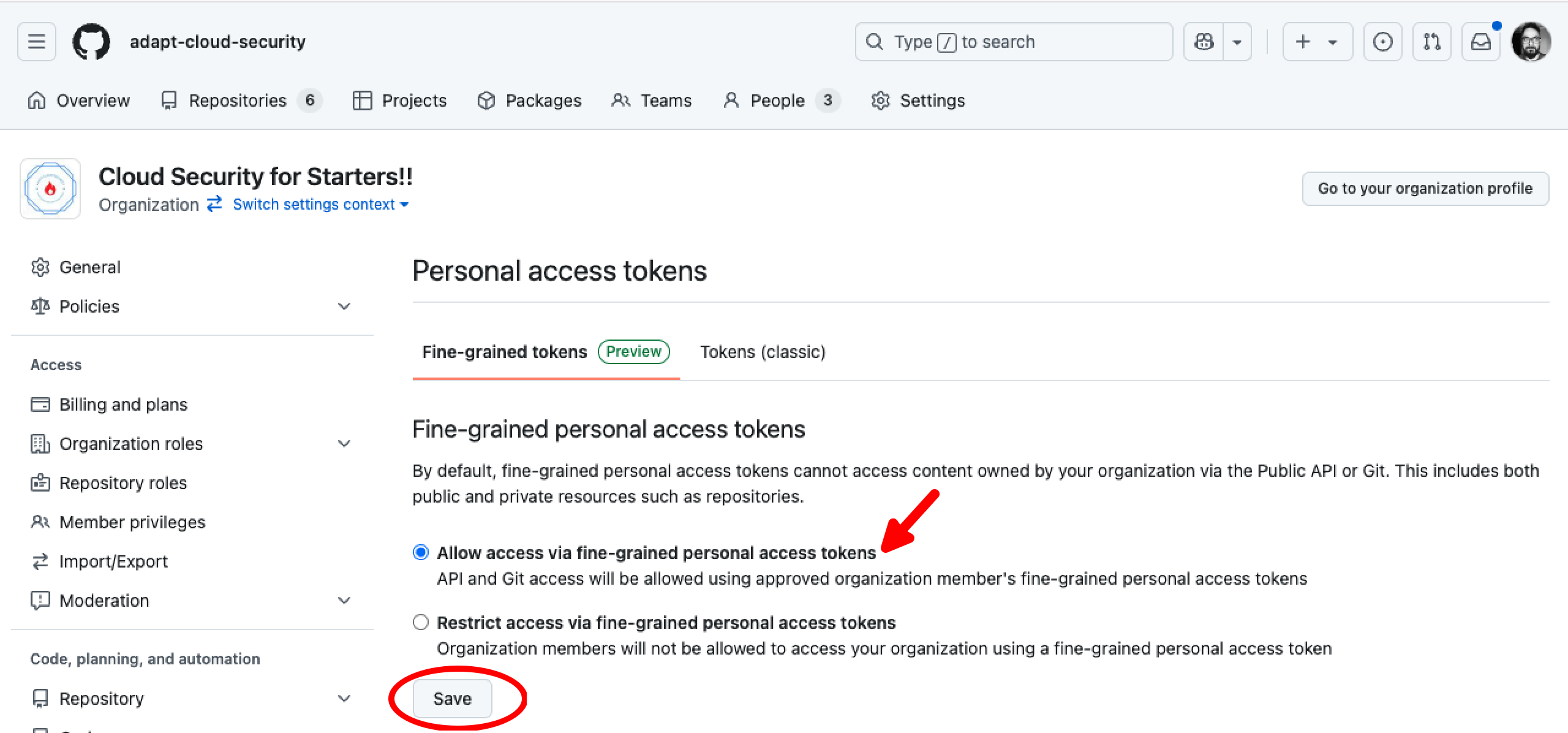
Step 1: Set Personal Access Token Policy for Your Organization
Setup the a personal access token policy for your organization prior to importing the organization into Guardrails. Refer steps provided in the GitHub documentation.
Choose Allow access via fine-grained personal access tokens.
Step 2: Create Personal Access Token
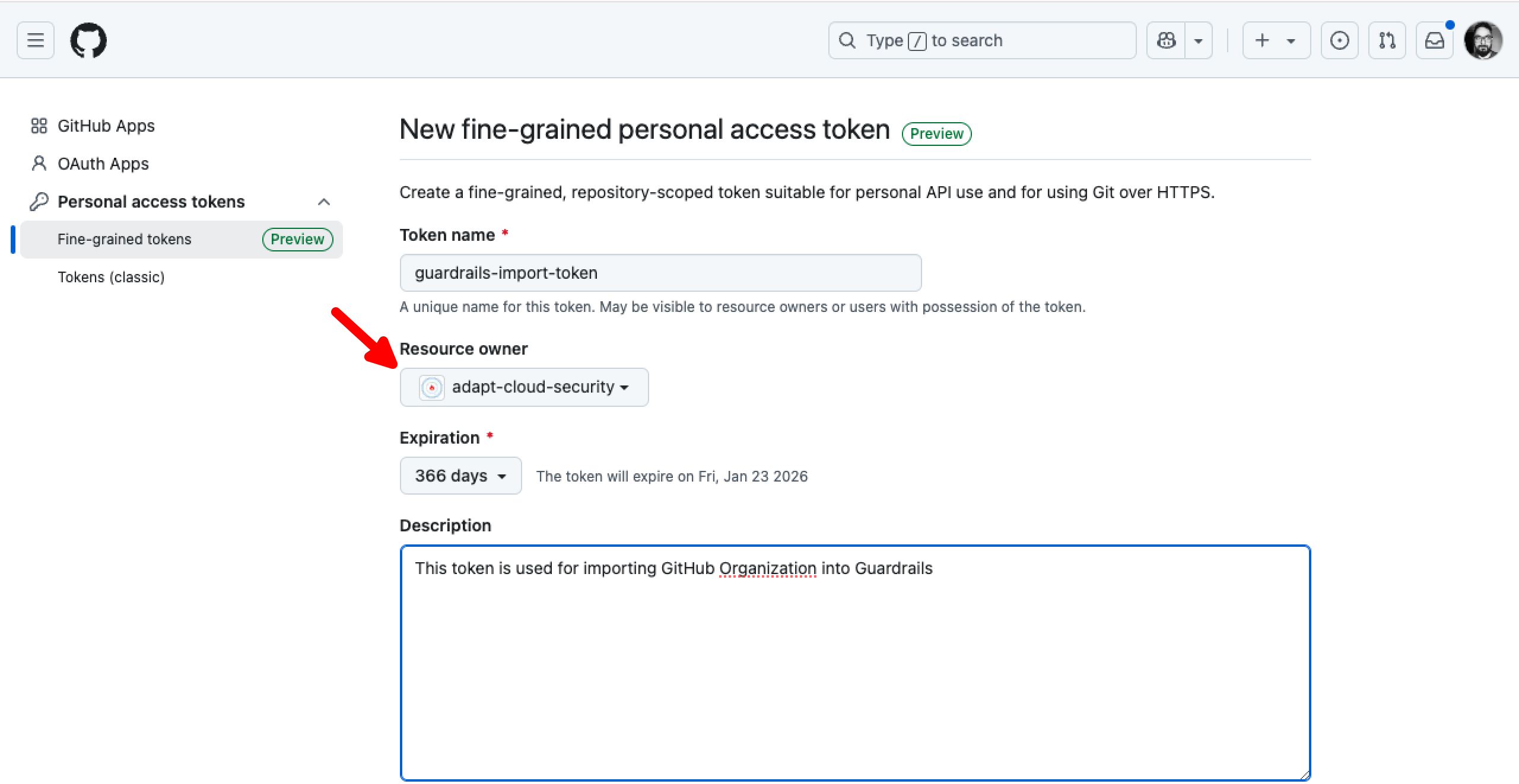
Turbot Guardrails supports both Fine-grained or Classic GitHub token. This token is available in the GitHub portal under Developer settings and provide secure access to your resources.
Follow the GitHub provided steps in Creating a fine-grained personal access token
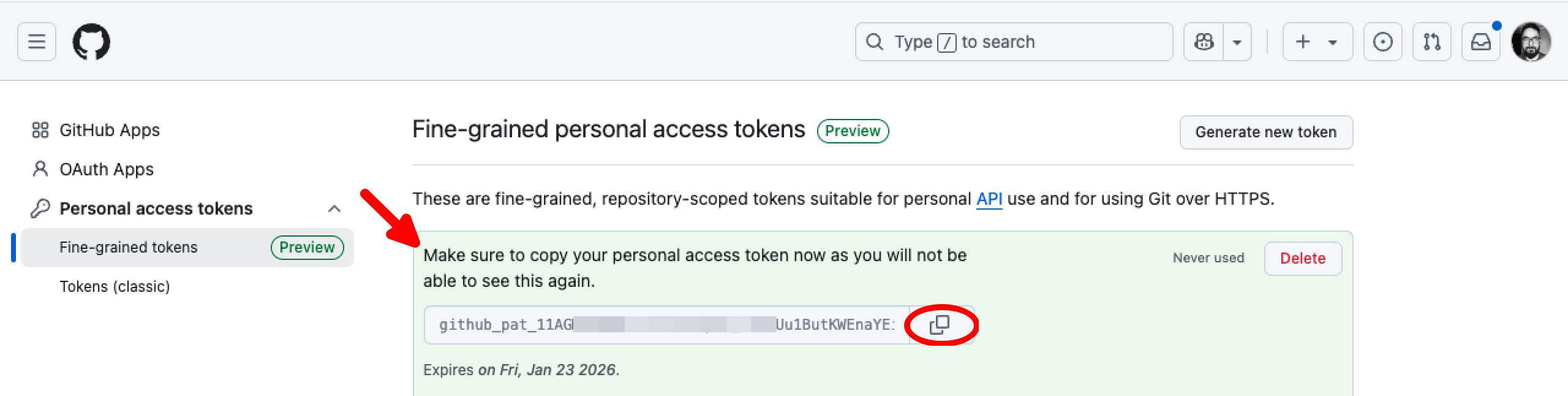
Copy the personal access token.
[!IMPORTANT] Make sure to copy your personal access token during the creation step as you will not be able to see this again.
Step 3: Grant Permissions
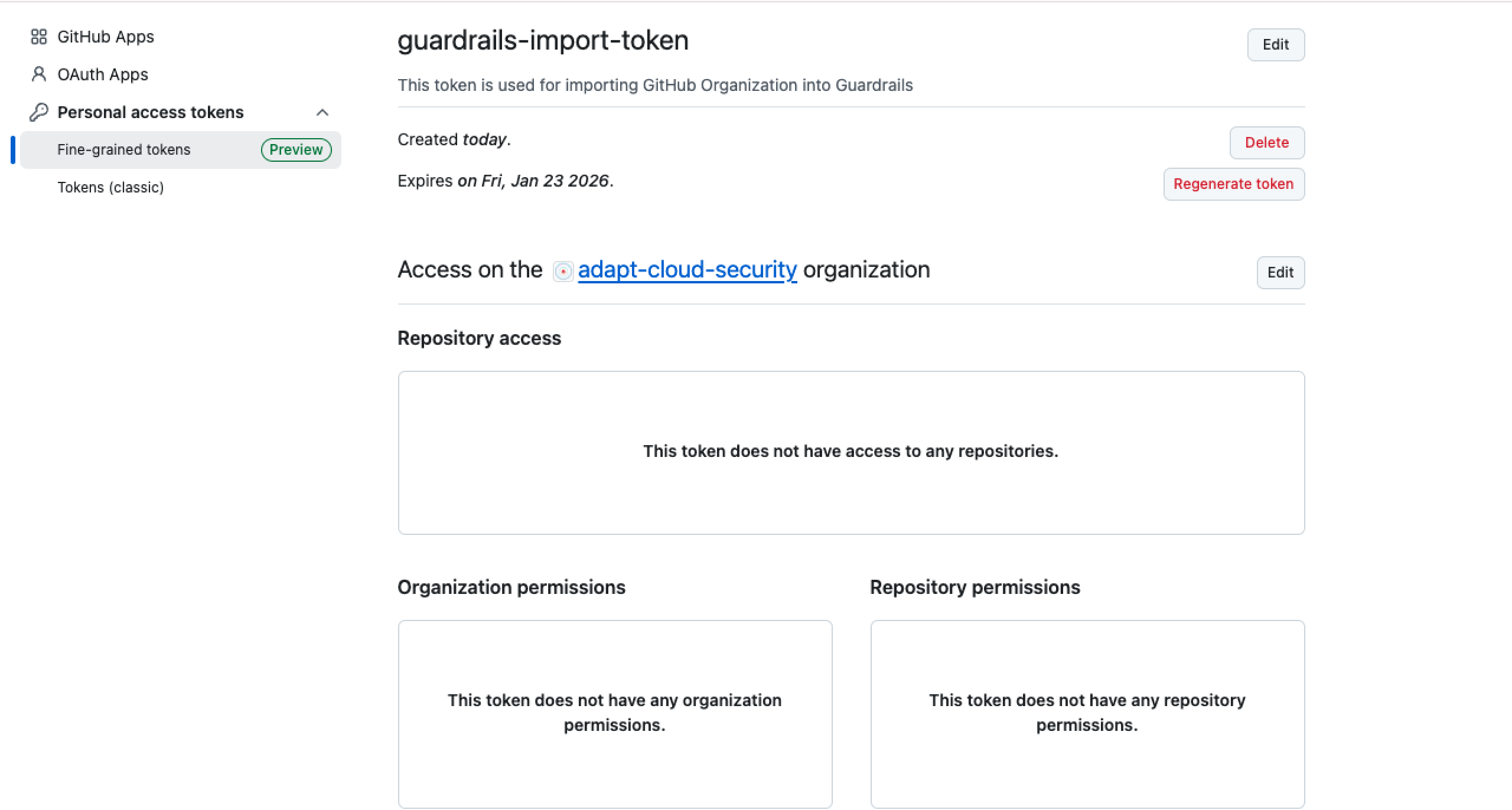
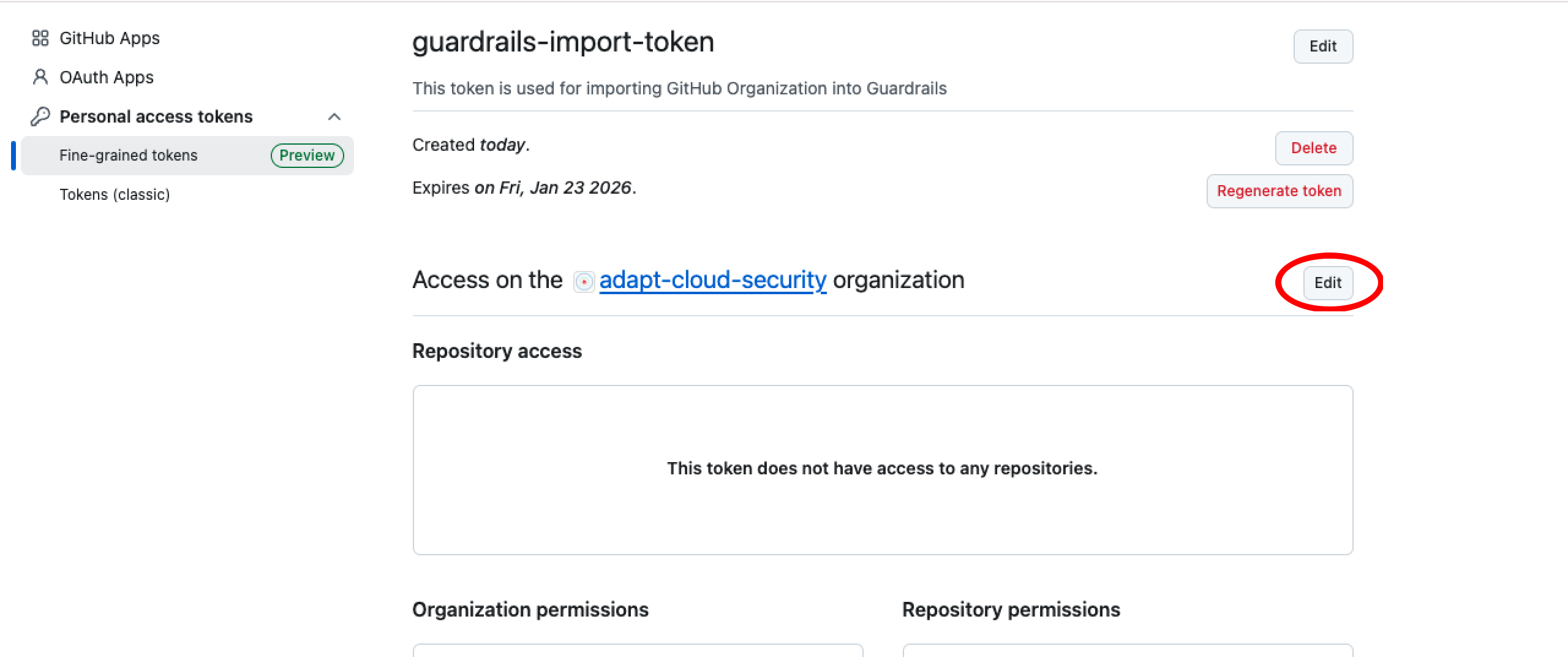
Once you create a fine-grained token, initially it does not have any associated permission.
Required Permissions
To ensure full functionality of the GitHub integration, we recommend granting the following permissions:
| Permission | Access Level | Description |
|---|---|---|
| Organization Administration | Read and write | Allows Guardrails to manage settings and configurations at the organization level. |
| Organization Webhooks | Read and write | Allows Guardrails to manage webhooks for capturing real-time events at the organization level. |
| Repository Metadata | Read-only | Provides Guardrails with visibility into repository metadata without modifying its content. |
| Repository Administration | Read and write | Grants Guardrails the ability to manage repository settings, including access controls and policies. |
| Organization Blocking Users | Read and write | Enables Guardrails to block and unblock users within the organization. |
Select Edit, which allows to make edit in Permissions section.
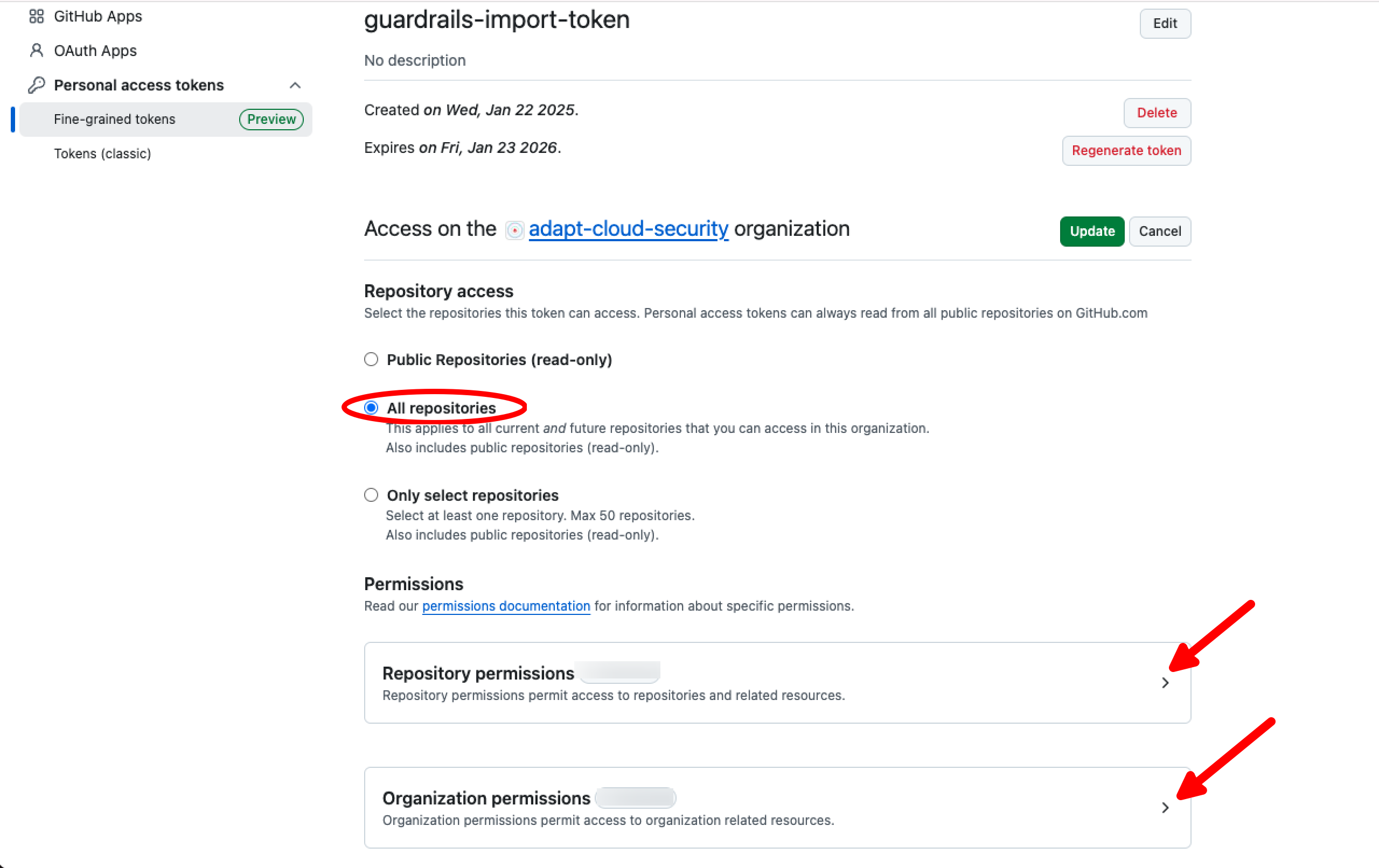
Grant the required permissions by selecting All repositories under Repository access and configuring the appropriate options in both Repository permissions and Organization permissions sections.
Step 4: Validate Personal Access Token for Organization
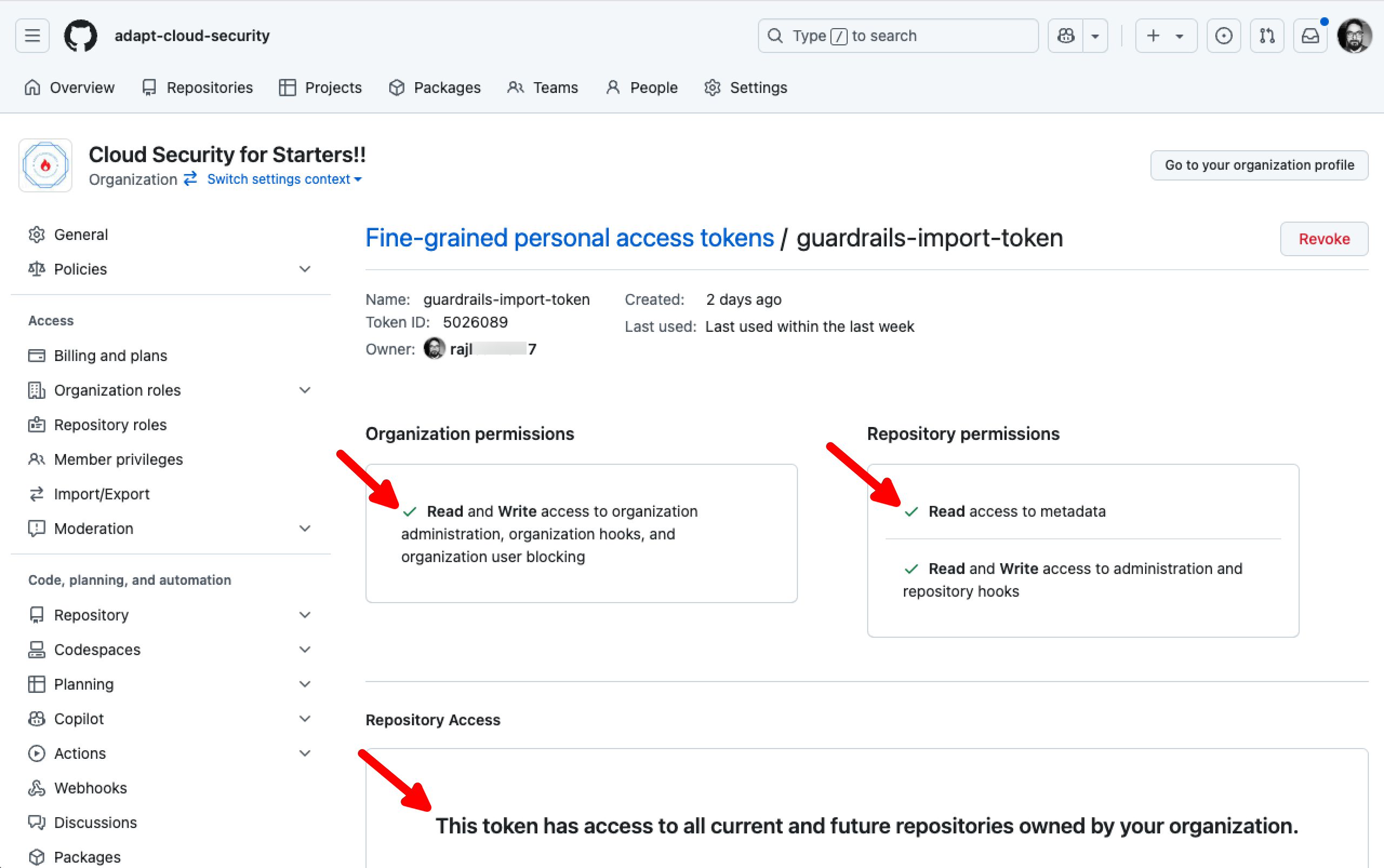
Navigate to your GitHub organization URL e.g. https://github.com/organizations/adapt-cloud-security and select Settings.

Navigate to Personal access tokens in left side panel, select Active tokens.

It should display you the token created in the above step, select the token to check the required permissions are associated.
Step 5: Log in to Guardrails Console
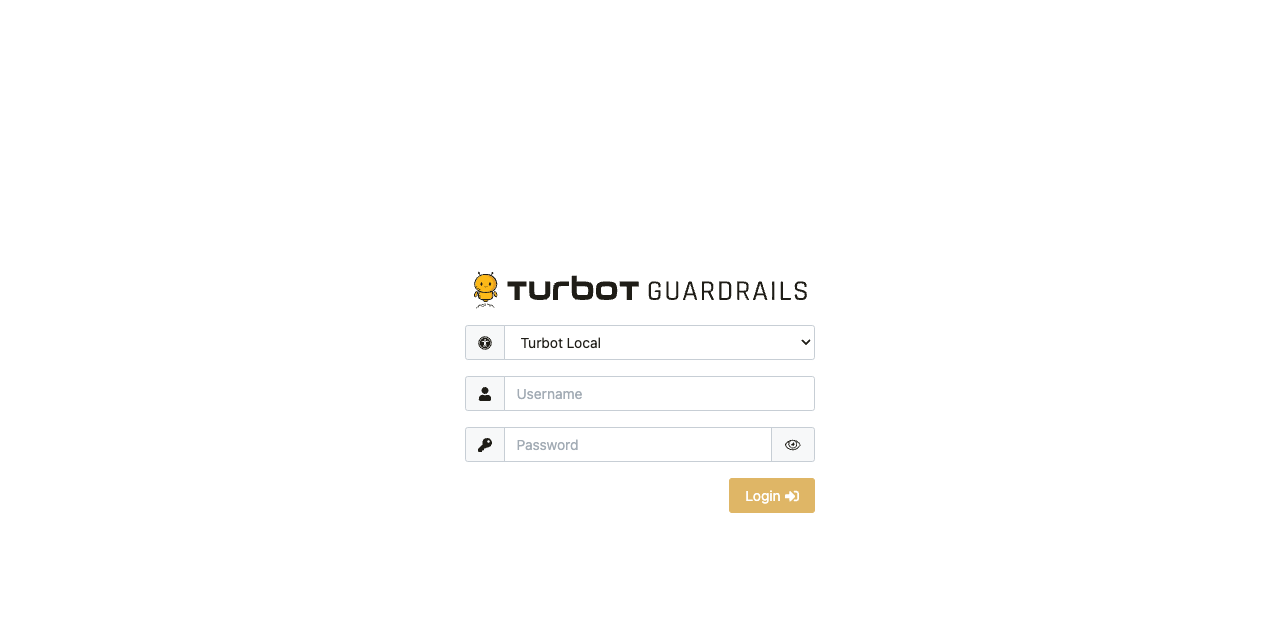
Log into the Guardrails console with provided local credentials or by using any SAML based login.
Step 6: Import Organization into Guardrails
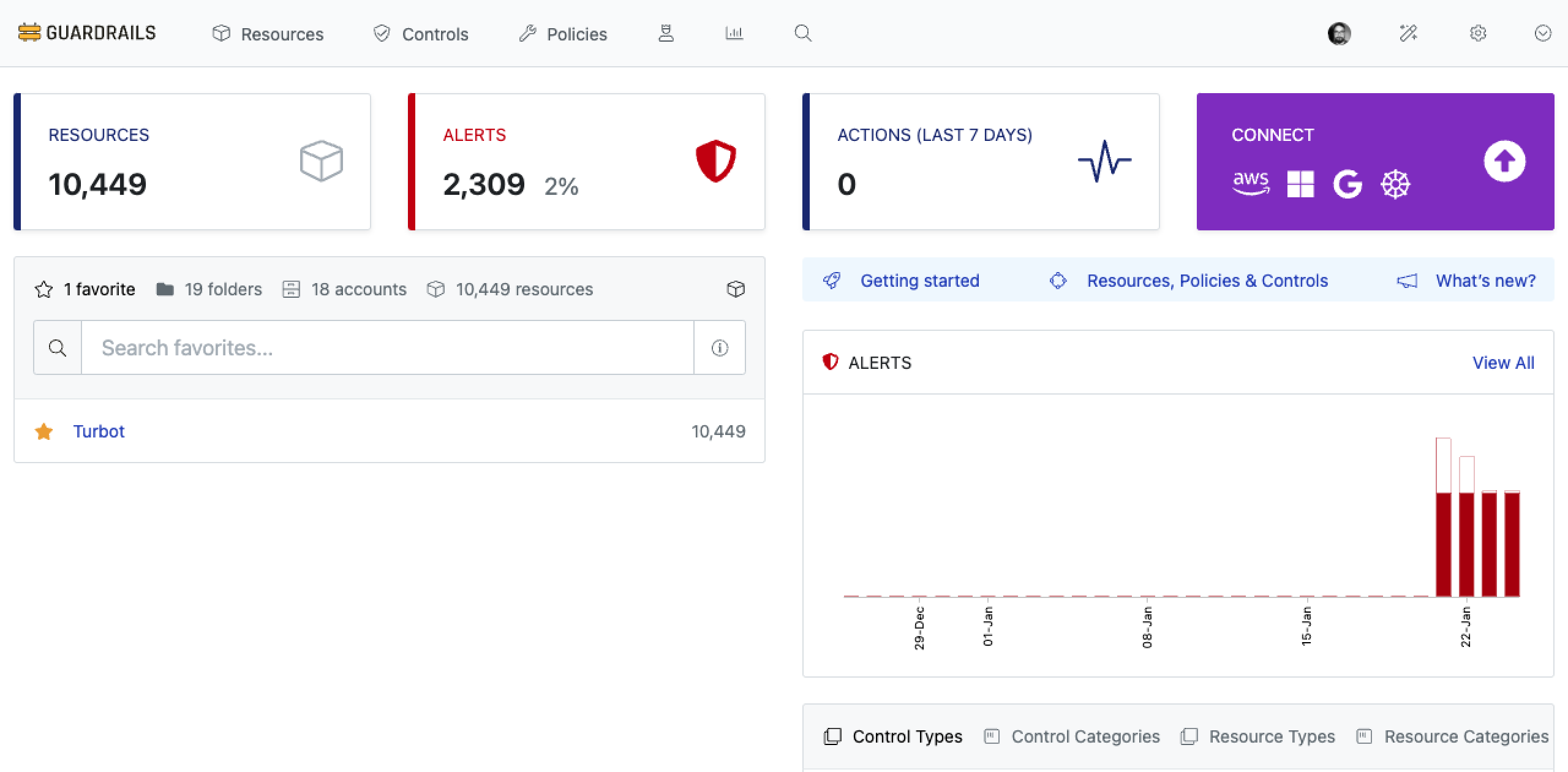
Login to your Guardrails workspace console and select the CONNECT card.
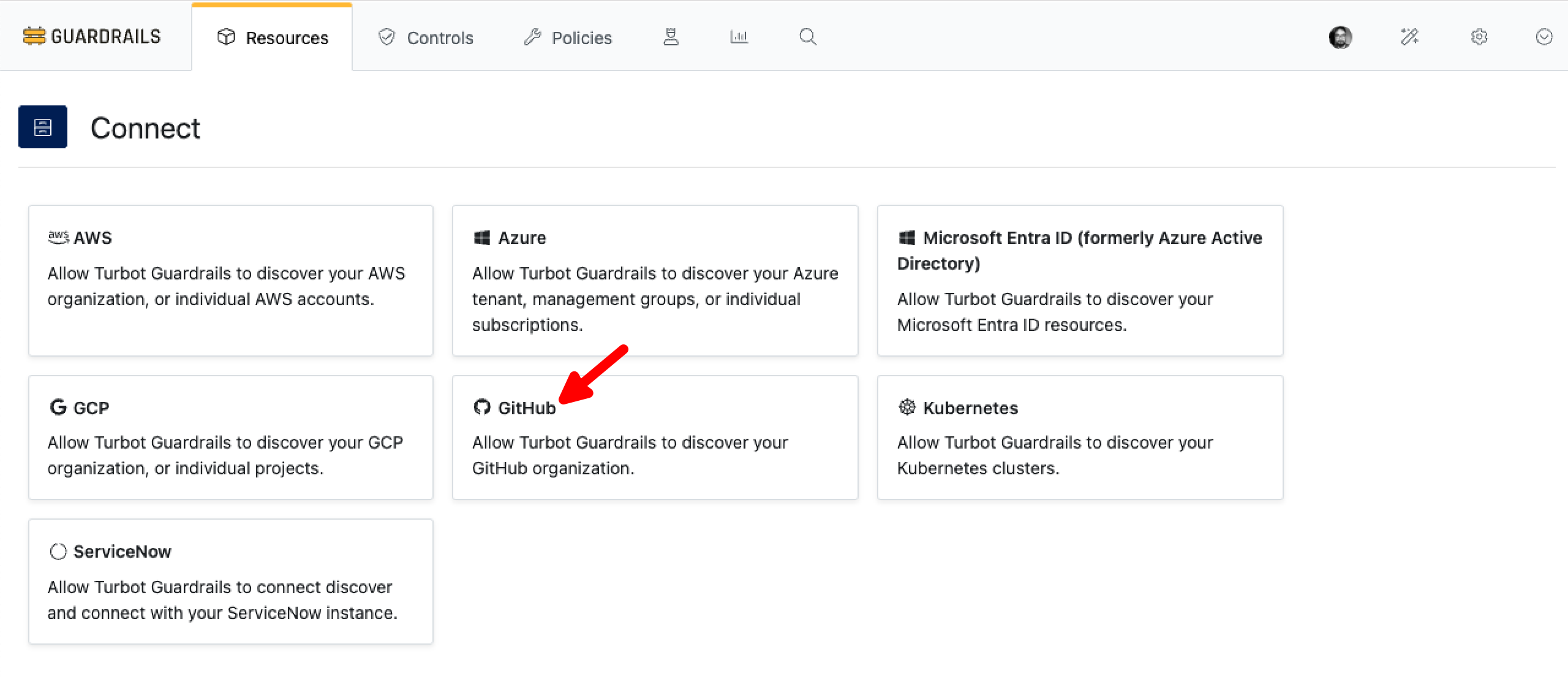
Select GitHub card from the Connect panel.
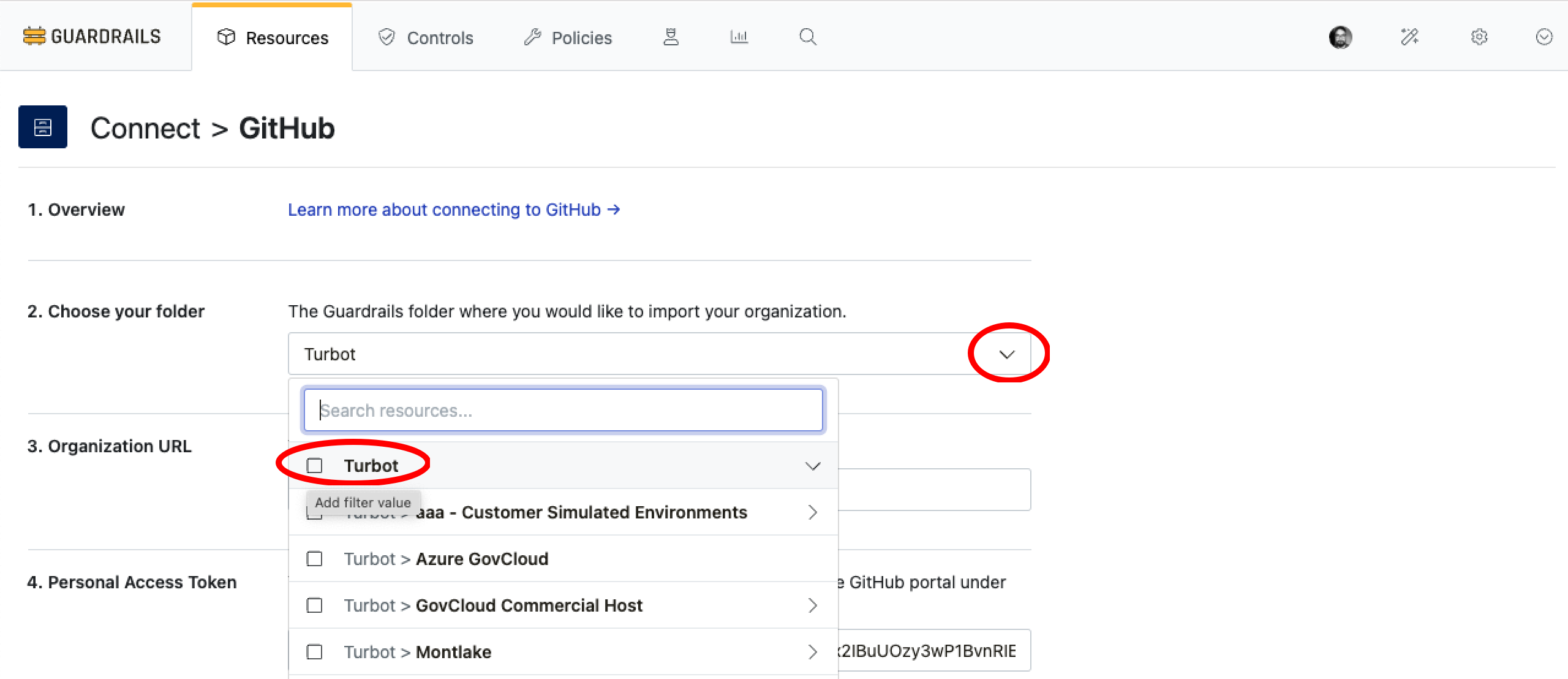
Choose the folder where you want to import the organization. Typically this would be done at the Turbot root level of your hierarchy, however it can reside in a Folder based on your use-case.
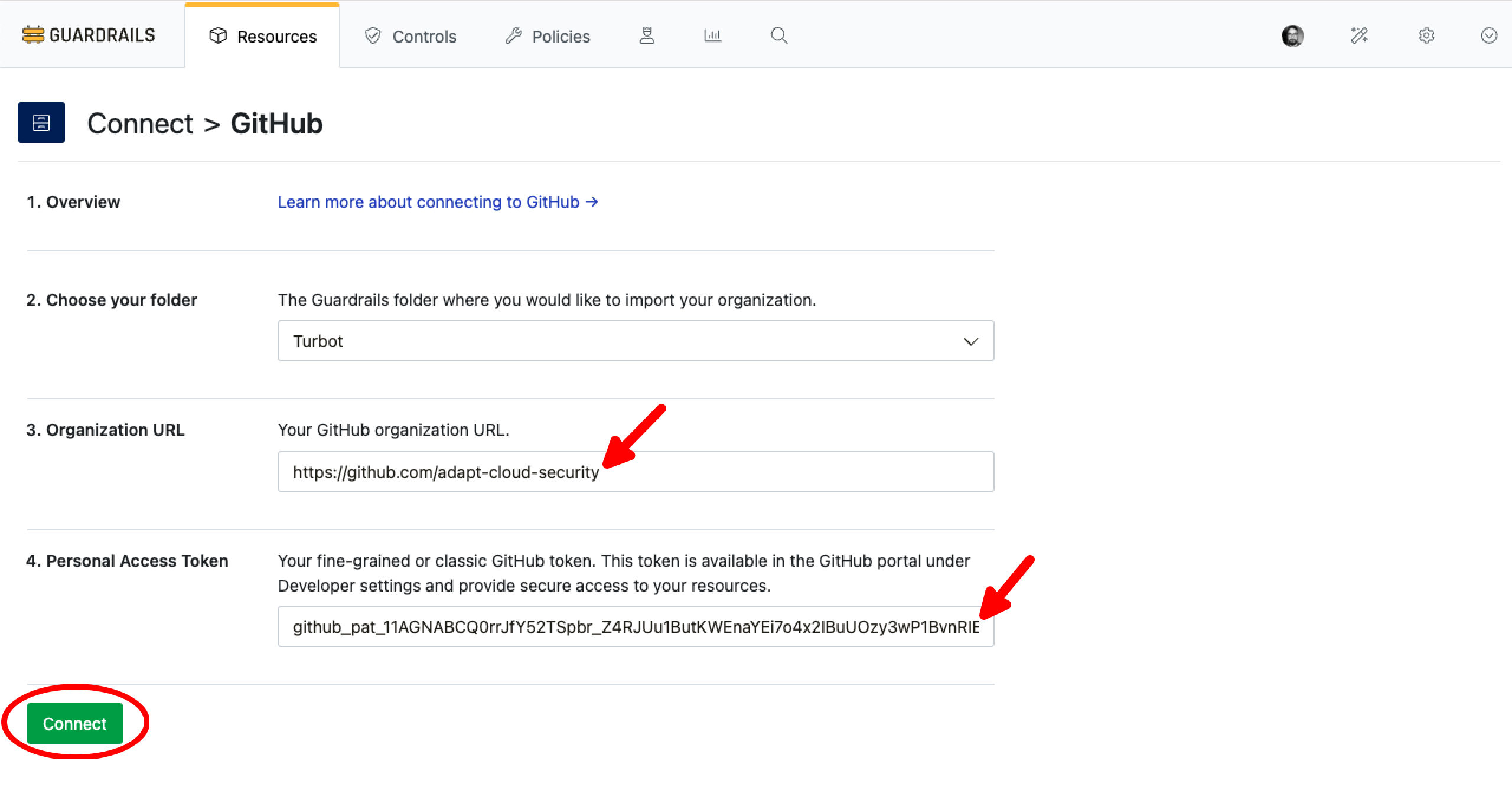
Get the Organization URL from GitHub Overview section. Copy the URL and past it in Organization URL text box.

Provide Personal Access Token and Select Connect.
Step 7: Review
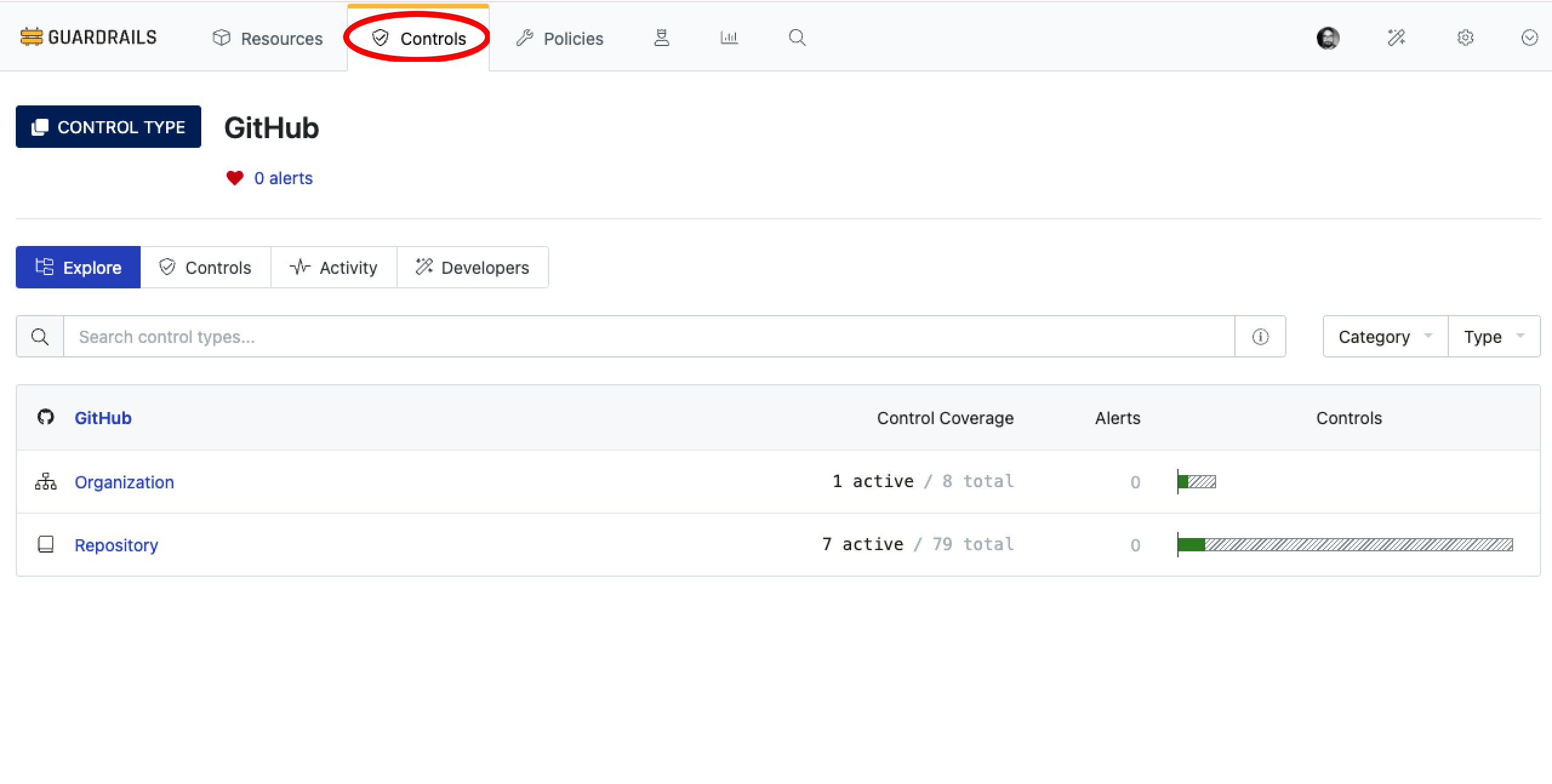
- Check that the controls are executed by navigating to Controls tab and select GitHub. This should display the default controls for
OrganizationandRepositoryinOKstate.
Next Steps
Please see the following resources to learn more about Turbot Guardrails:
- Learn more about GitHub Event Handlers.
- Explore the GitHub supported use cases in Guardrails with Policy Packs.
Troubleshooting
| Issue | Description | Guide |
|---|---|---|
| Controls in Error | Controls may enter various states, including errors, which can impact their functionality. | Learn More About Control States |
Message: Bad Credentials |
Guardrails GitHub controls may generate errors with a Bad credentials message, often caused by invalid or expired tokens. |
Token Expiration and Revocation |
Message: forbids access via a personal access token with fine-grained permissions |
Guardrails GitHub controls may generate errors with a forbids access error, often caused, in case the used personal token does not have any required permissions. |
Check the required permissions at Importing GitHub Organization Required Permissions & more details at Permissions required for fine-grained personal access tokens |
Message: Resource not accessible by personal access token .. list-users-blocked-by-an-organization |
Guardrails GitHub controls may generate errors with a forbids accessResource not accessible by personal access token |
Check the required permissions at Importing GitHub Organization Required Permissions & more details at Permissions required for fine-grained personal access tokens |
| Further Assistance | If issues persist, please open a ticket with us and attach relevant details for more efficient troubleshooting. | Open Support Ticket |