Skip Management Groups & Subscriptions
Skipping Management Groups & Subscriptions During Azure Tenant Import
In this guide, you will:
- Learn how to exclude management groups and subscriptions when importing an Azure Tenant into Turbot Guardrails.
- Ensure that only the required resources are onboarded while maintaining governance control.
- Monitor and troubleshoot the import process to ensure a seamless setup.
Azure root management group (Tenant) manages the hierarchy of management group and subscriptions . By default, Guardrails imports all management groups and subscriptions under a tenant. However, you can exclude specific subscriptions or management groups from being onboarded.
While you can import an Azure Tenant at the Turbot level, it is recommended that you import tenant into Guardrails Folder, as it provides greater flexibility and ease of management.
[!WARNING] When an Azure Tenant is imported into your Guardrails workspace, any existing subscriptions belonging to the tenant will automatically be moved under the Azure Tenant hierarchy. This may impact subscriptions or management groups associated with any policy packs under existing folder hierarchy, as they will inherit the policies from the folder under which the tenant is imported, along with its associated policy packs or default settings.
To avoid disruptions, it is recommended to create a separate Turbot Guardrails folder and import the tenant under it while excluding existing subscriptions and management groups. This ensures that the discovery of new or existing subscriptions happens within the newly created folder, preventing unintended changes to already onboarded subscriptions.
If you prefer to align already onboarded subscriptions with your Azure root management group (Tenant) hierarchy, Guardrails will automatically move them under the tenant during the import process, following the default import behavior. Refer to the Azure Management Group Hierarchy for more details.
Prerequisites
- Access to the Guardrails console with Turbot/Owner or Turbot/Admin permissions at the Turbot resource level.
- The
azuremod installed in your Guardrails workspace. - Familiarity with the Azure Portal, including admin privileges and Guardrails console.
- An Azure App Registration with the required permissions configured.
- An Azure Tenant ID and Client ID for authentication. Refer here for more details related to Azure credentials
Step 1: Create Folder
Log in to the Guardrails console using your local credentials or via SAML-based login.
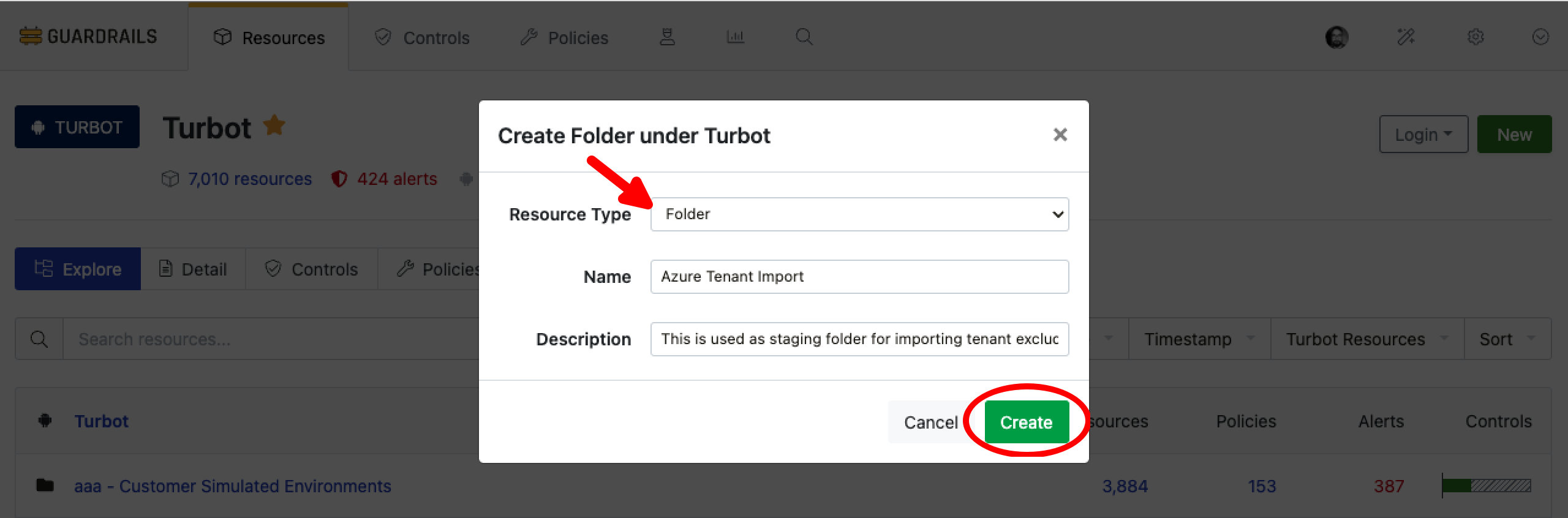
Create folder as provided in Creating a folder
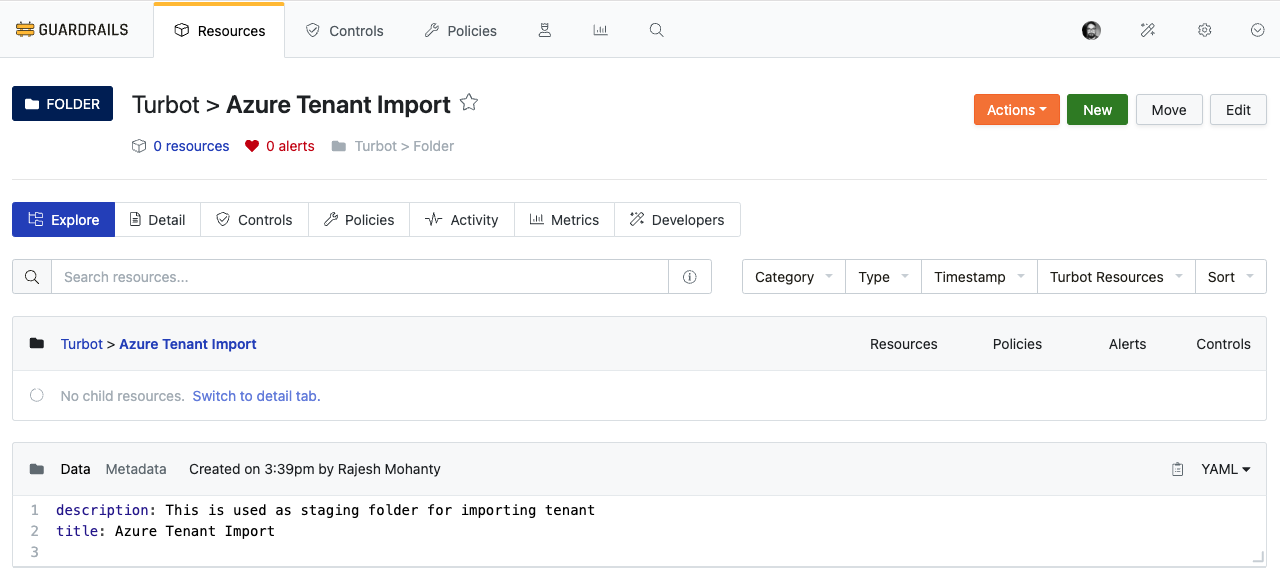
Validate that the folder is created.
Step 2: Check Azure Root Management Group (Tenant) Hierarchy
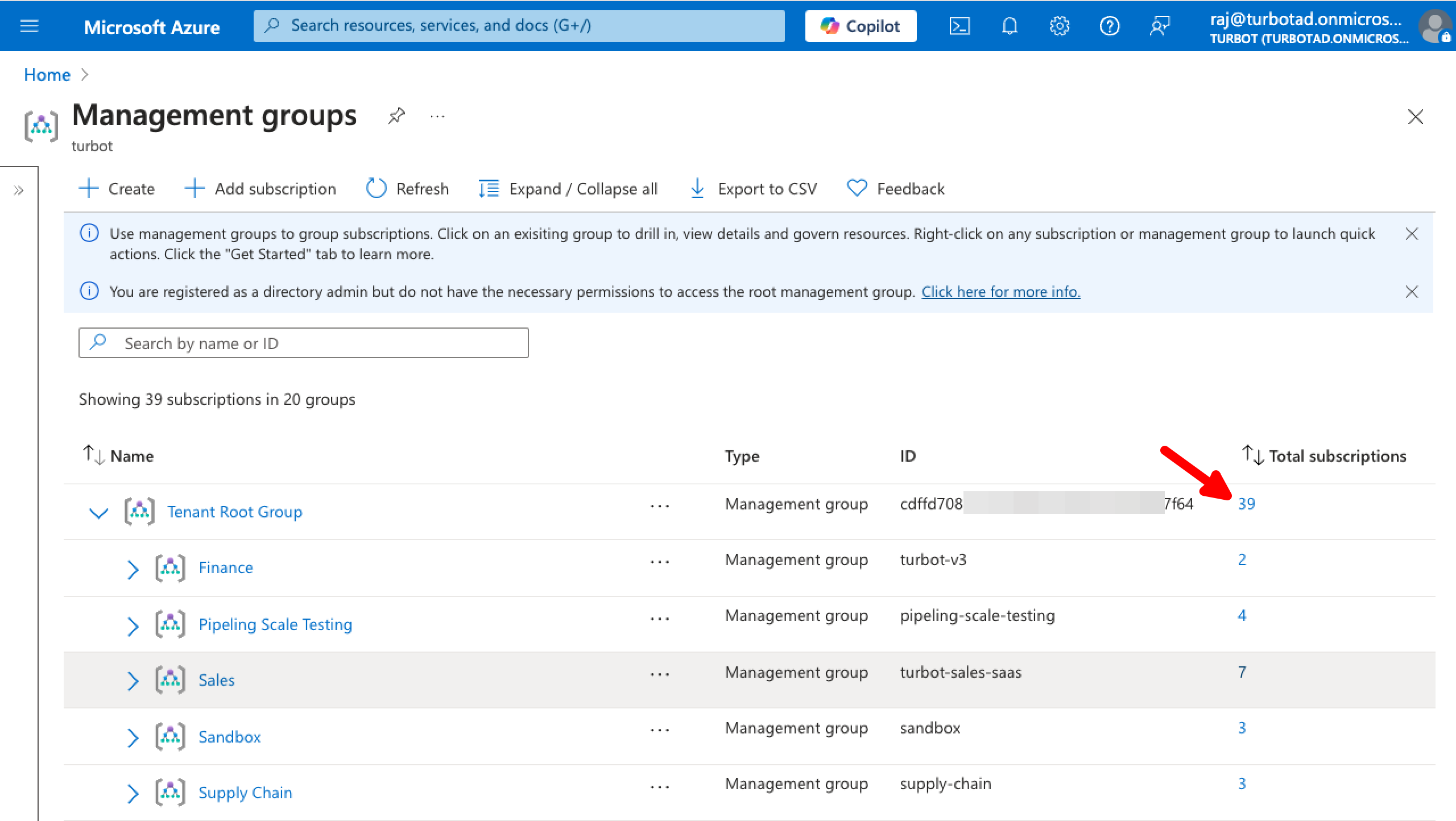
Before importing the tenant, it is important to review the current hierarchy of your Azure Tenant. Navigate to the Azure portal with appropriate permissions and access the Management Groups page to check the existing structure. Refer to the images below.
Total Number of Subscriptions
Identify Management Group & Subscription IDs
Check the ID of management groups and subscriptions under the management group. The top-most management group is the Tenant Root Group, and its associated ID represents the Tenant ID, which will be required during the tenant import process.
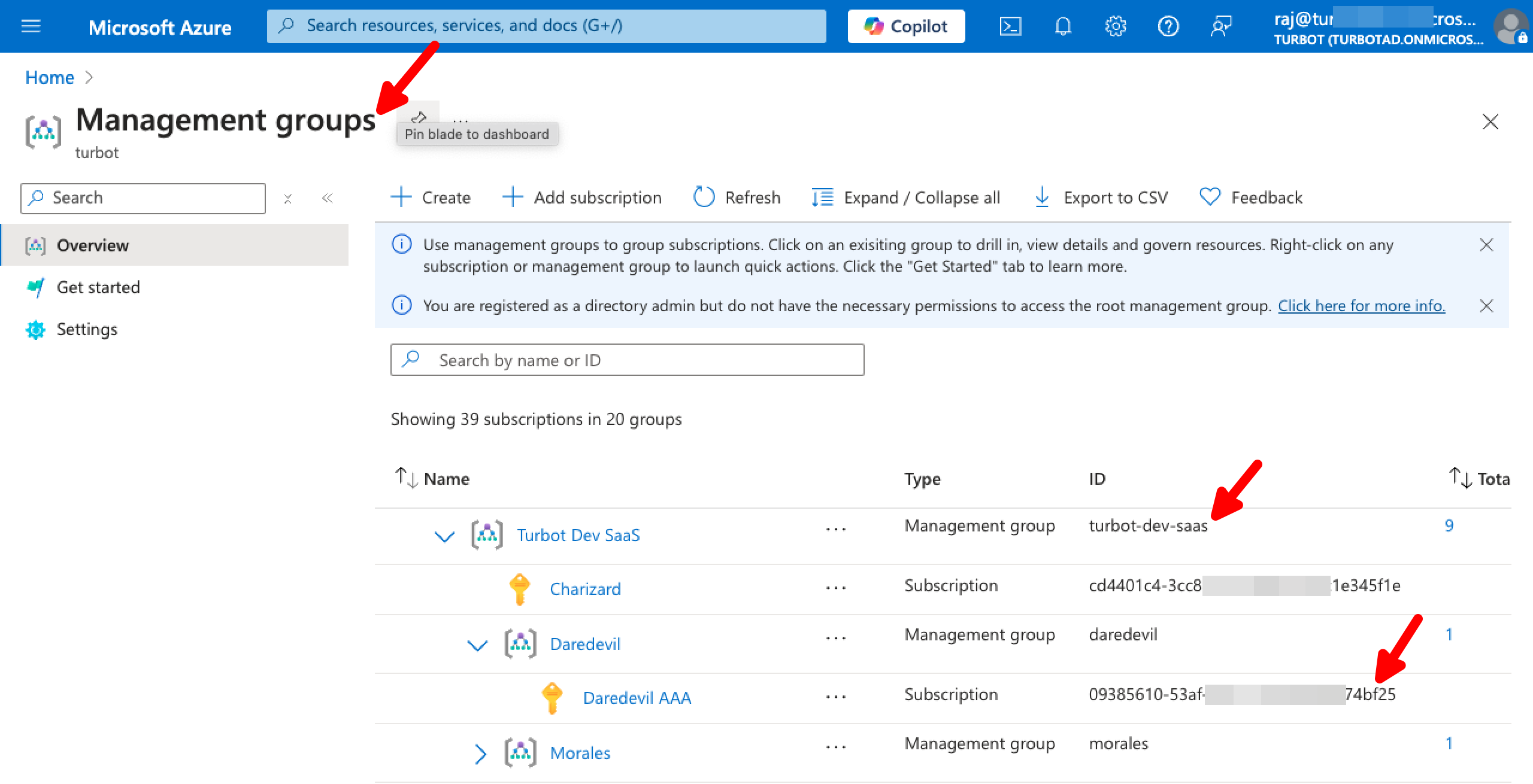
From this page, prepare a list of Azure management groups or subscriptions that need to be excluded by navigating through each section.
Find List of Management Group & Subscription in Guardrails
Validate the no of existing subscriptions in the workspace to help with your exclusion list.
In Guardrails console,
- Select to Reports.
- Choose Resources by Resource Type.
- Select
Azure > SubscriptionandAzure > Managament Groupfrom Type dropdown.
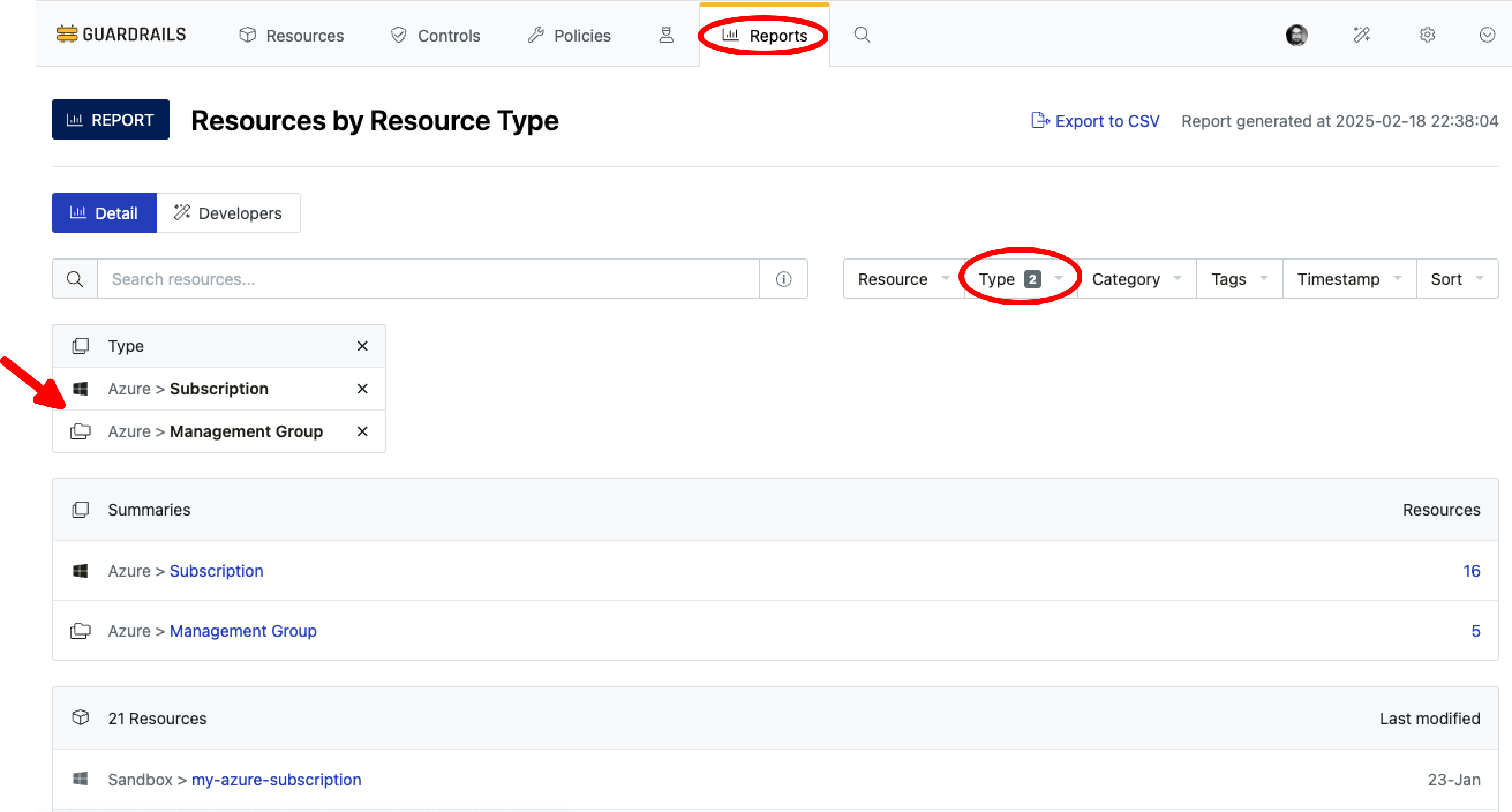
After checking the list of existing subscriptions and management groups in your Guardrails workspace, ensure that the exclusion list aligns with your requirements.
[!IMPORTANT] If a management group is added to the exclusion list, Guardrails will not discover any new subscriptions added under that management group. As a result, subscriptions under those management group will never be onboarded to Guardrails.
Carefully evaluate this decision before onboarding the Azure Tenant.
Step 3: Configure Azure Tenant Import
In the Guardrails console, navigate to the CONNECT card and select Azure.
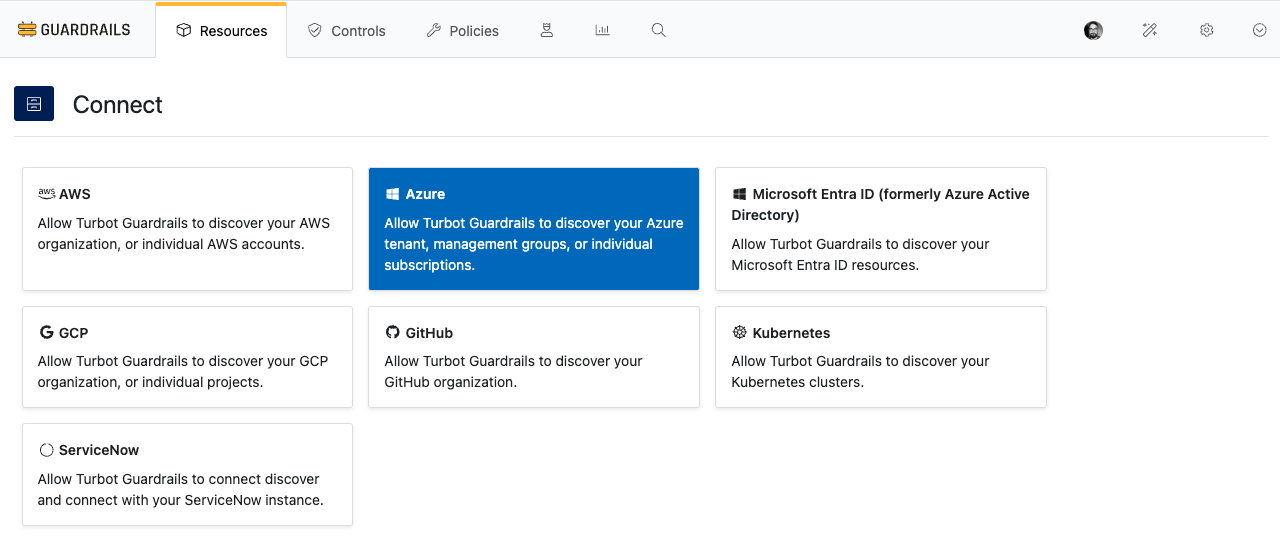
As next steps:
- Select Azure Tenant from the Select your account type options.
- In the Choose your folder dropdown, select the Guardrails folder you created in
Step 1for importing the Azure Tenant. - Enter the Tenant ID.
- Provide Client credentials:
Client IDClient Secret
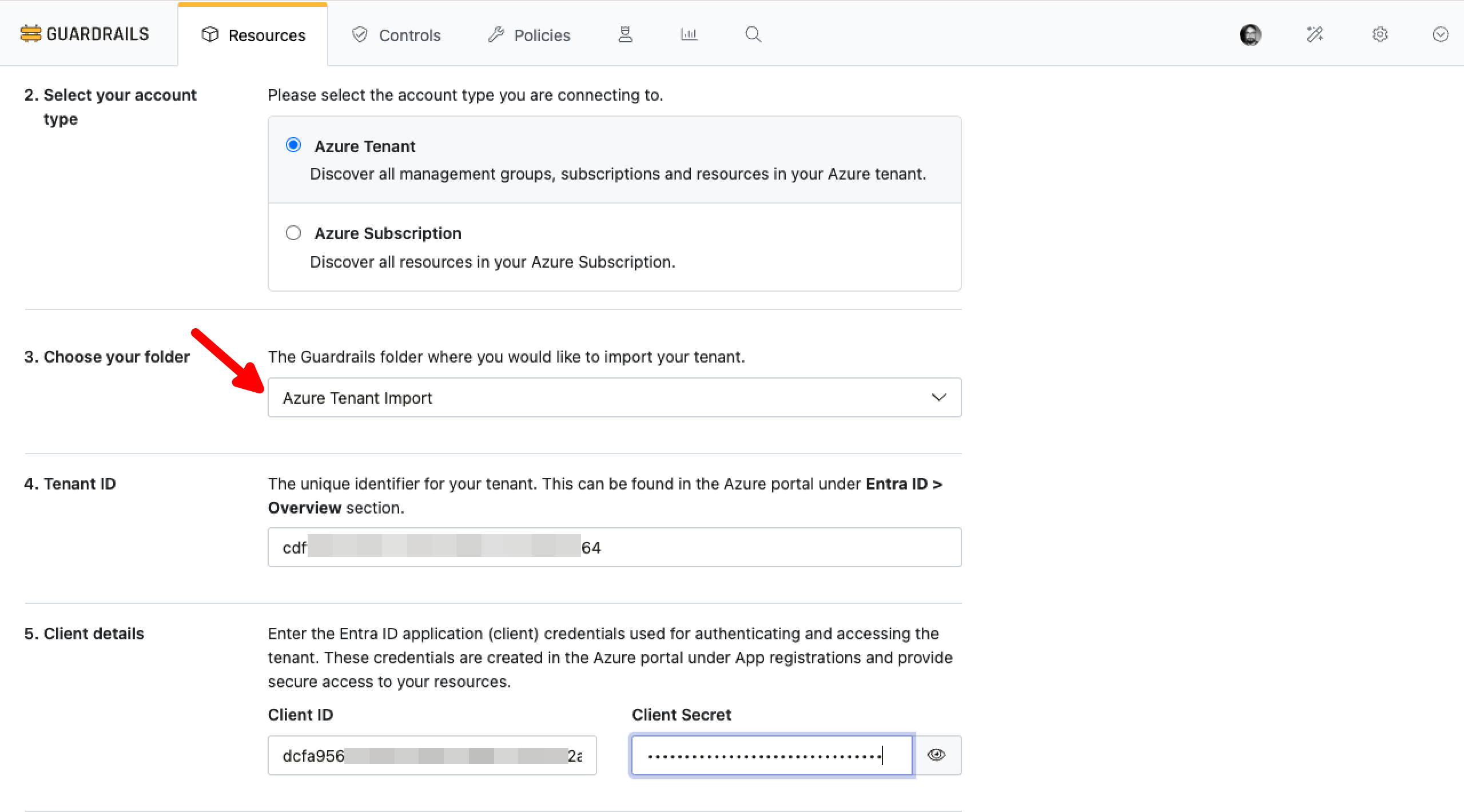
Step 4: Exclude Specific Management Groups and Subscriptions
This step is required if you want to exclude specific management groups or subscriptions from being imported into Guardrails.
- Select Environment as
Global Cloud. - Provide a YAML list of subscription or management group IDs to be excluded from the import process in Exclude Subscriptions.

[!IMPORTANT] If a management group is added to the exclusion list, Guardrails will not discover any new subscriptions added under that management group. As a result, subscriptions under those management groups will never be onboarded to Guardrails.
Carefully review this decision before proceeding with the Azure Tenant import.
Validate the List
Select Preview to validate the entries.
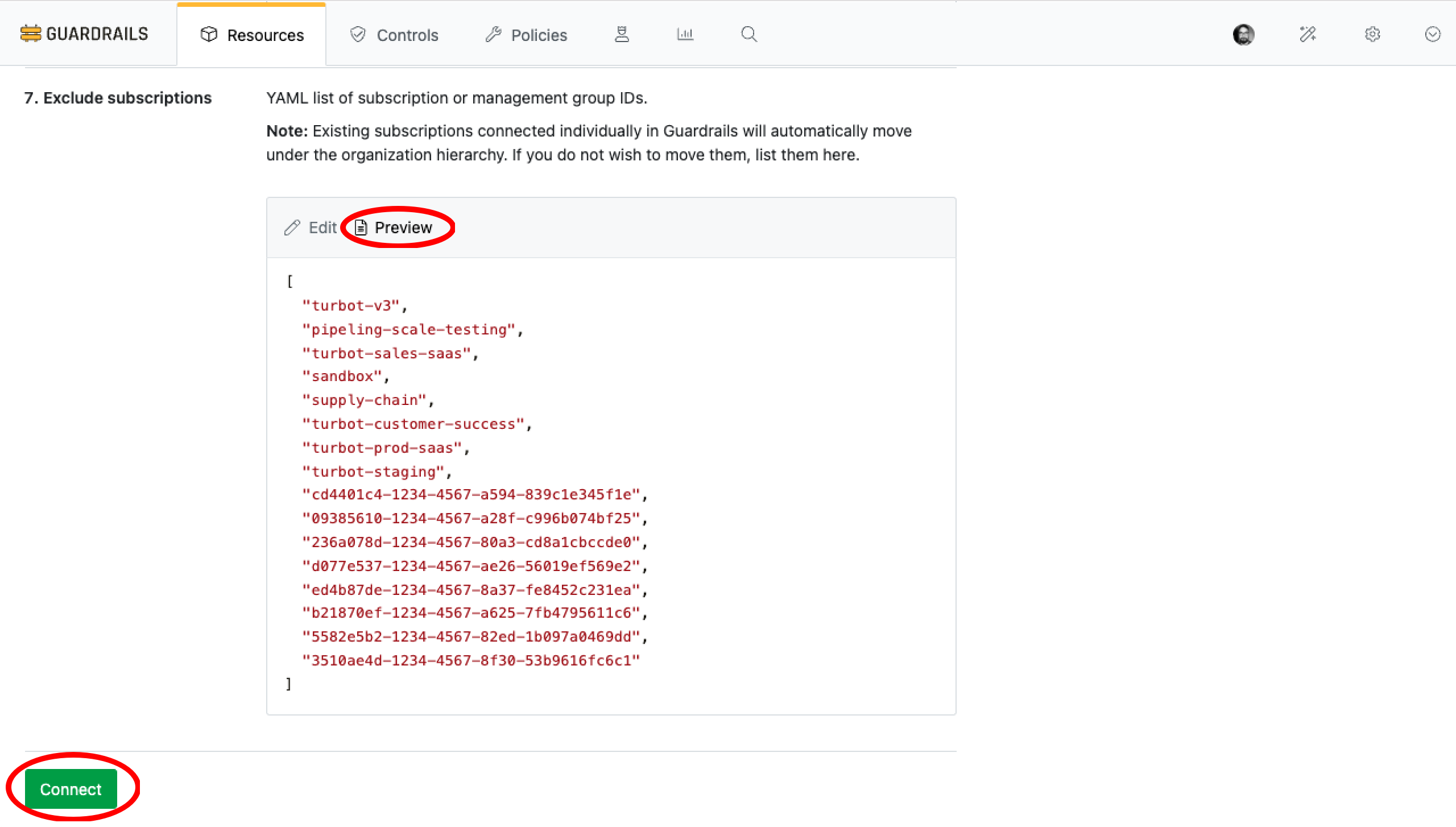
Step 5: Start Import
Once the exclusions are configured, proceed with the import.
Select Connect to initiate the import process.
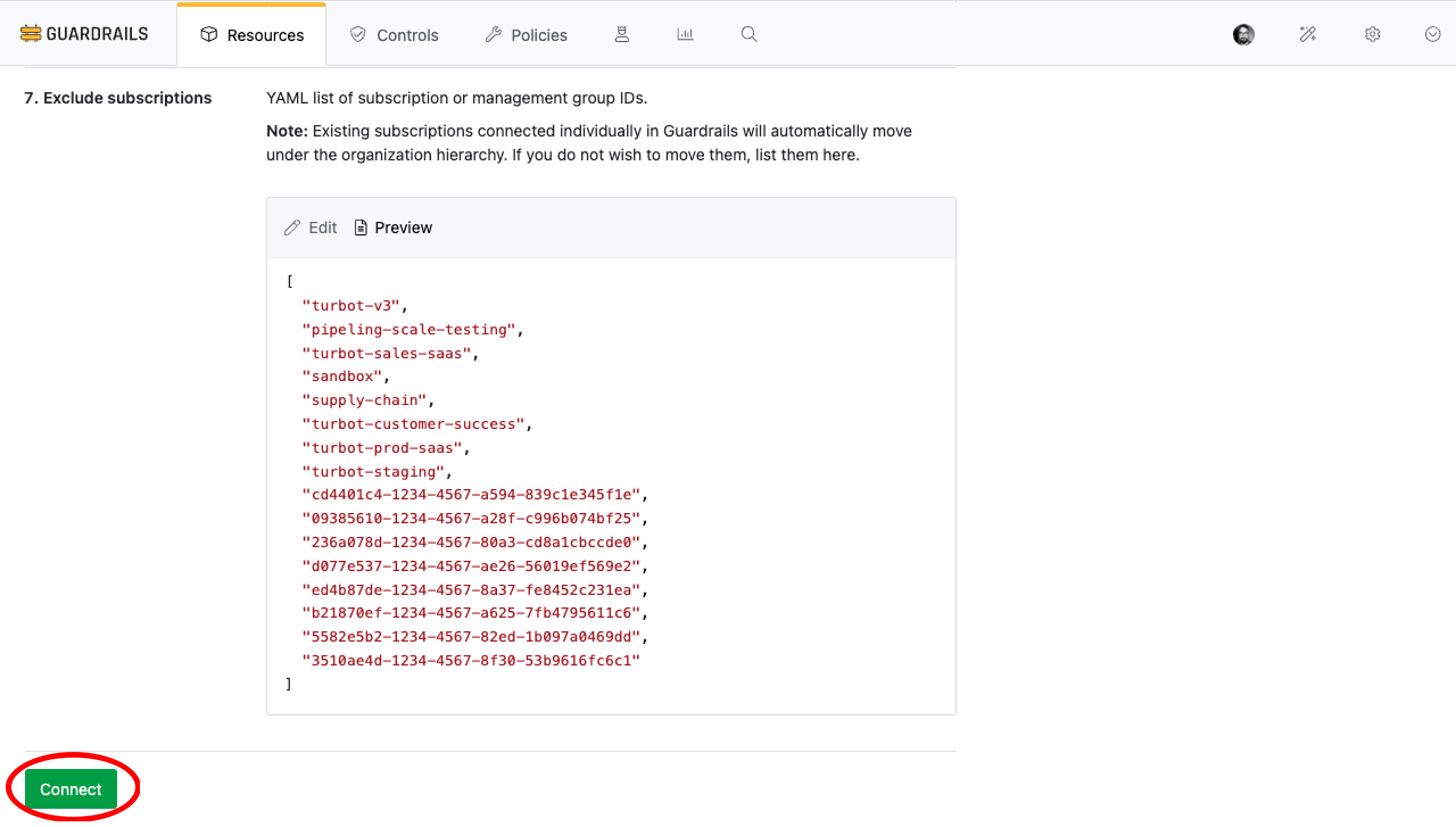
Guardrails will validate the provided credentials and execute discovery controls to identify and manage resources within the tenant.
[!IMPORTANT] When you import the Azure Tenant, Guardrails also discovers the
Azure > Active Directory > Directory, now referred to as Microsoft Entra ID.You do not need to import
Microsoft Entra ID (formerly Azure Active Directory)separately.
Step 6: Review
- Verify that the resource discovery page progress is running smooth and starting to discover resources under Azure tenant.
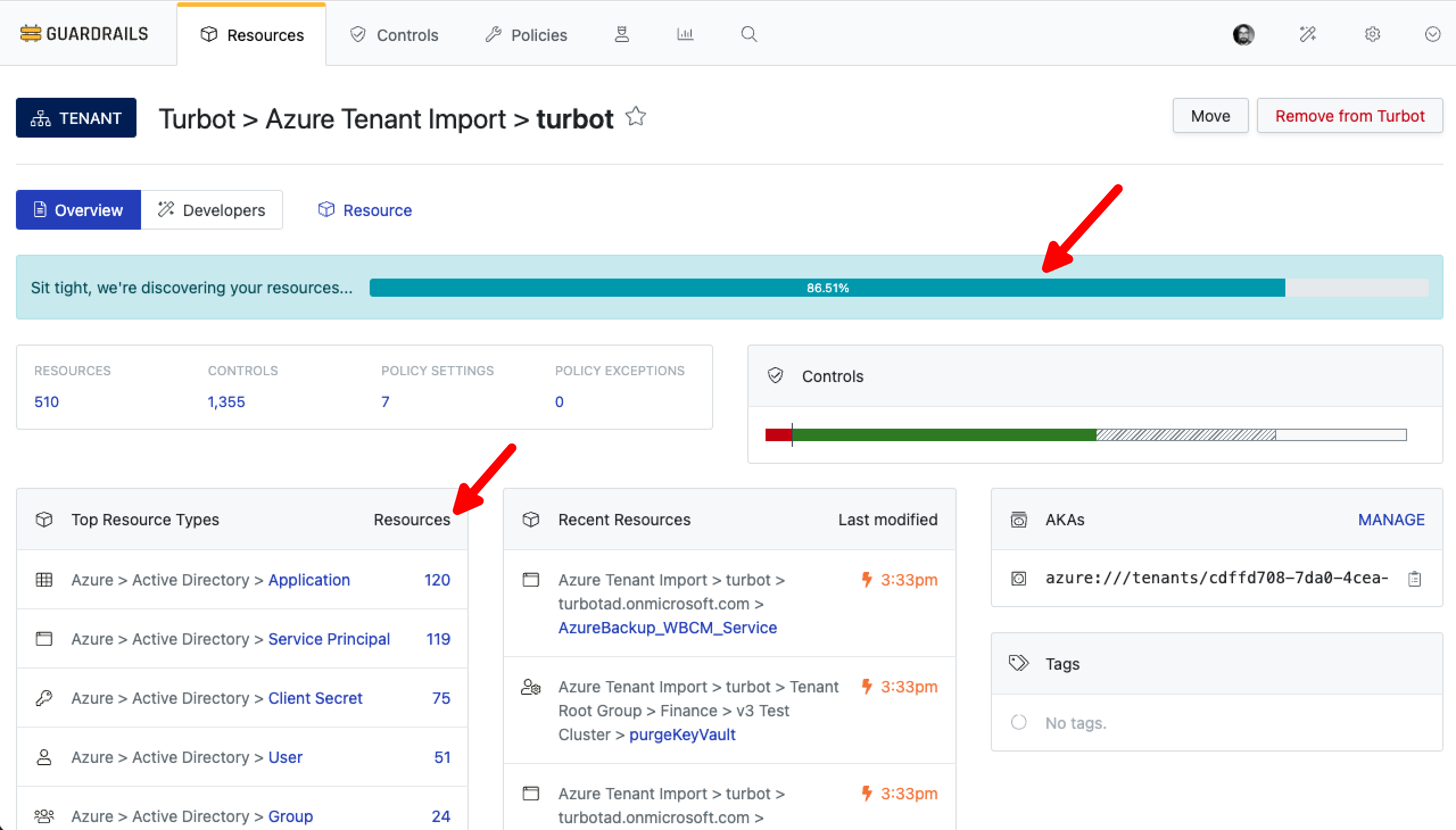
- Verify that the designated Folder is now displaying the Azure tenant.
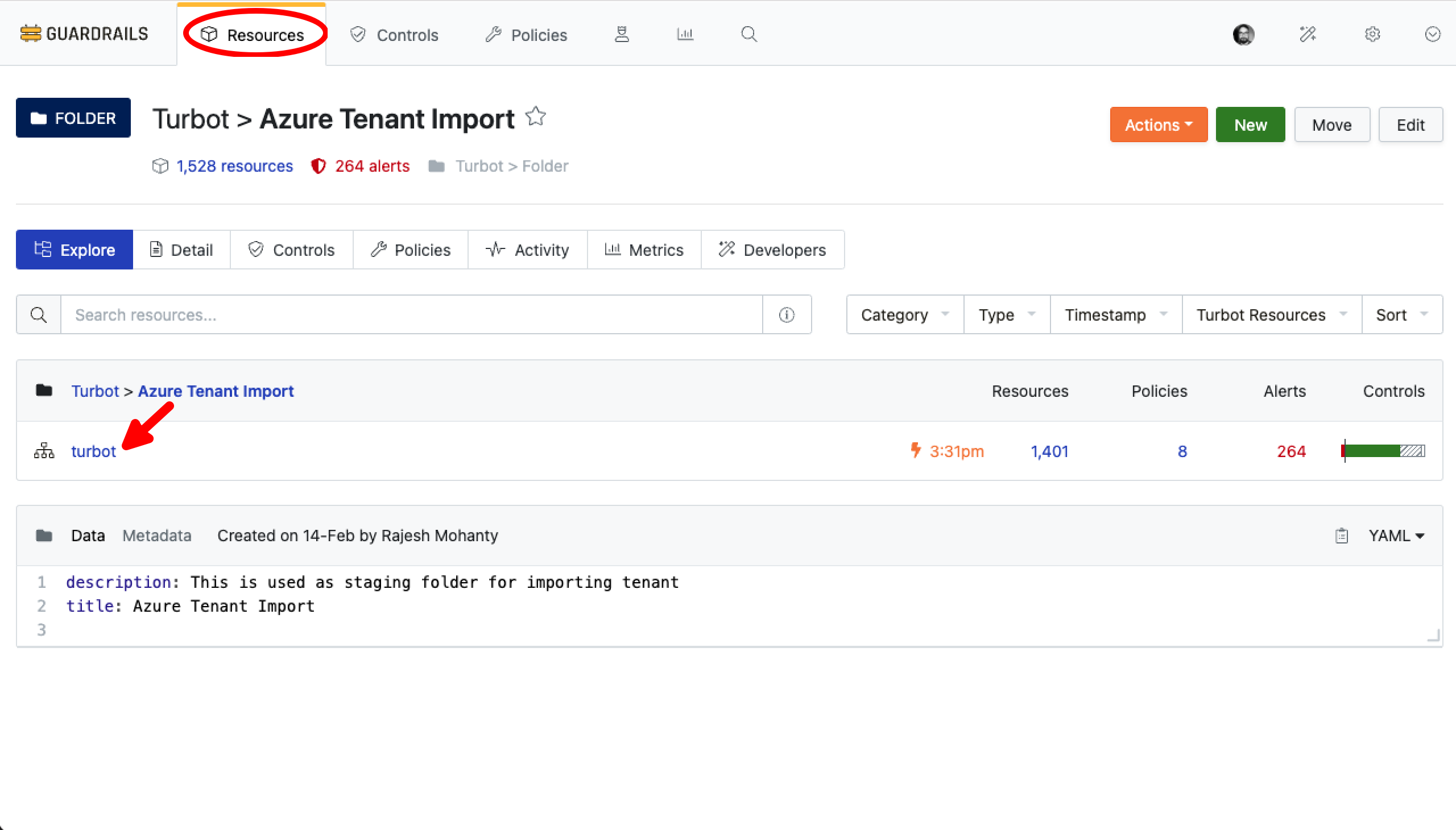
- Verify that
Azure > Tenant > CMDB > Excludeis applied with the desired excluded list provided during the import.
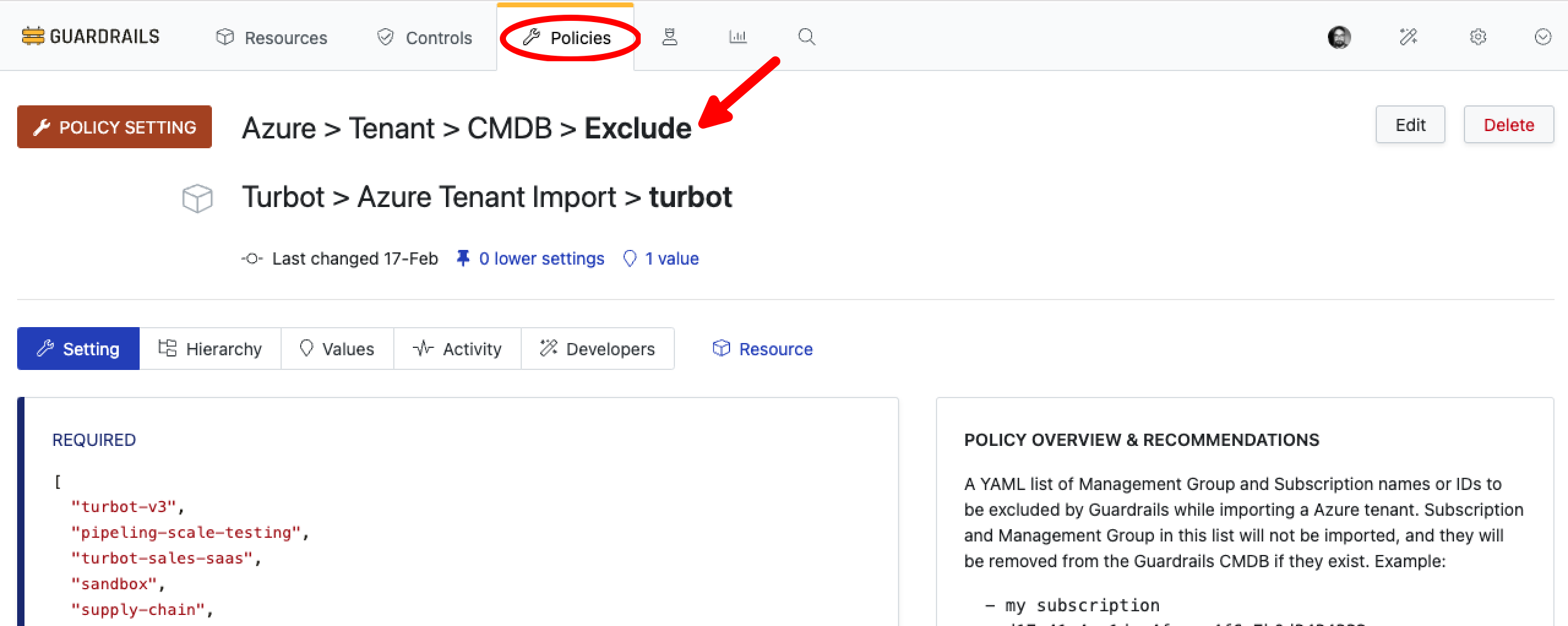
- Verify that only the required management groups and subscriptions have been imported.
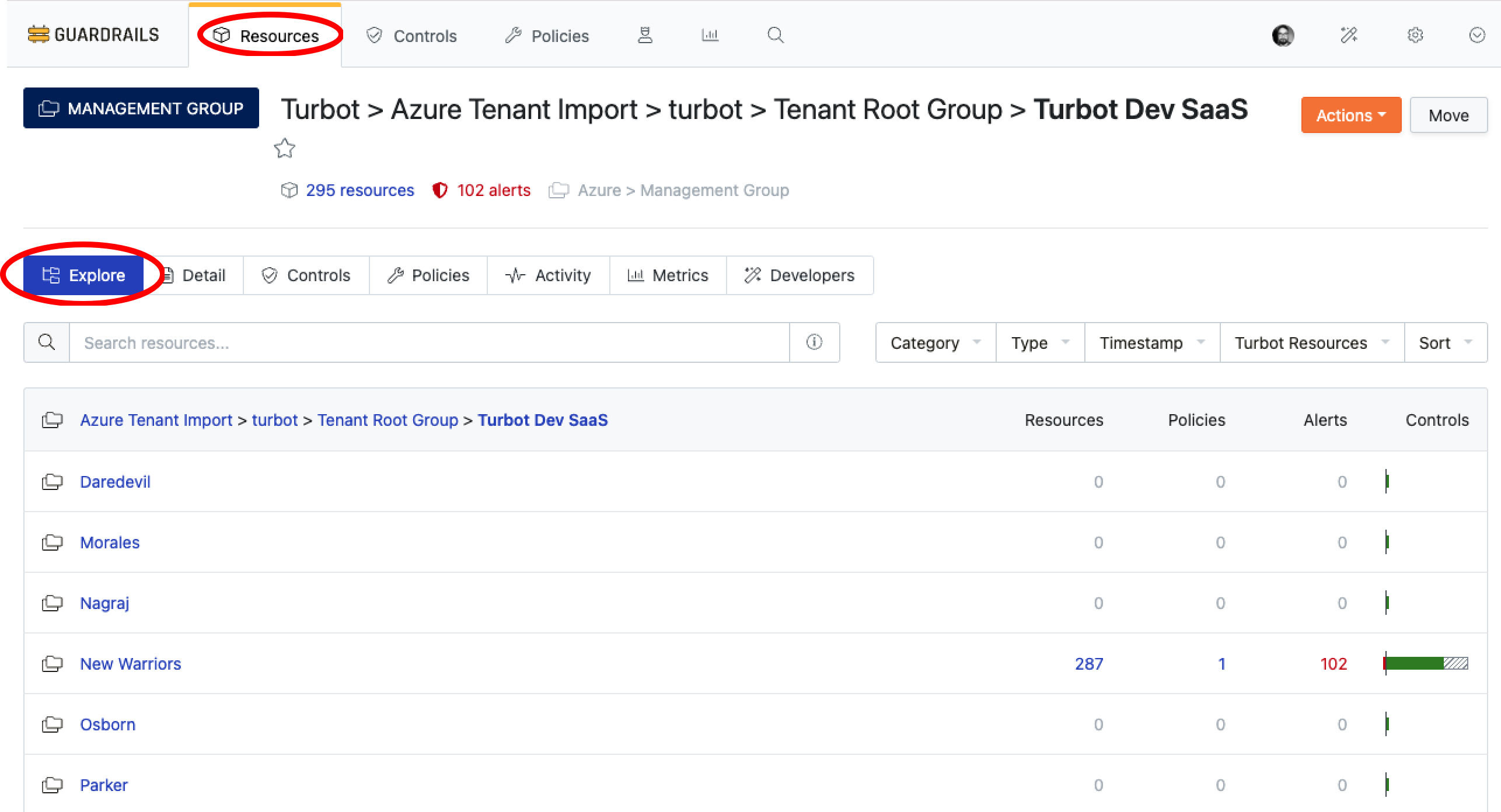
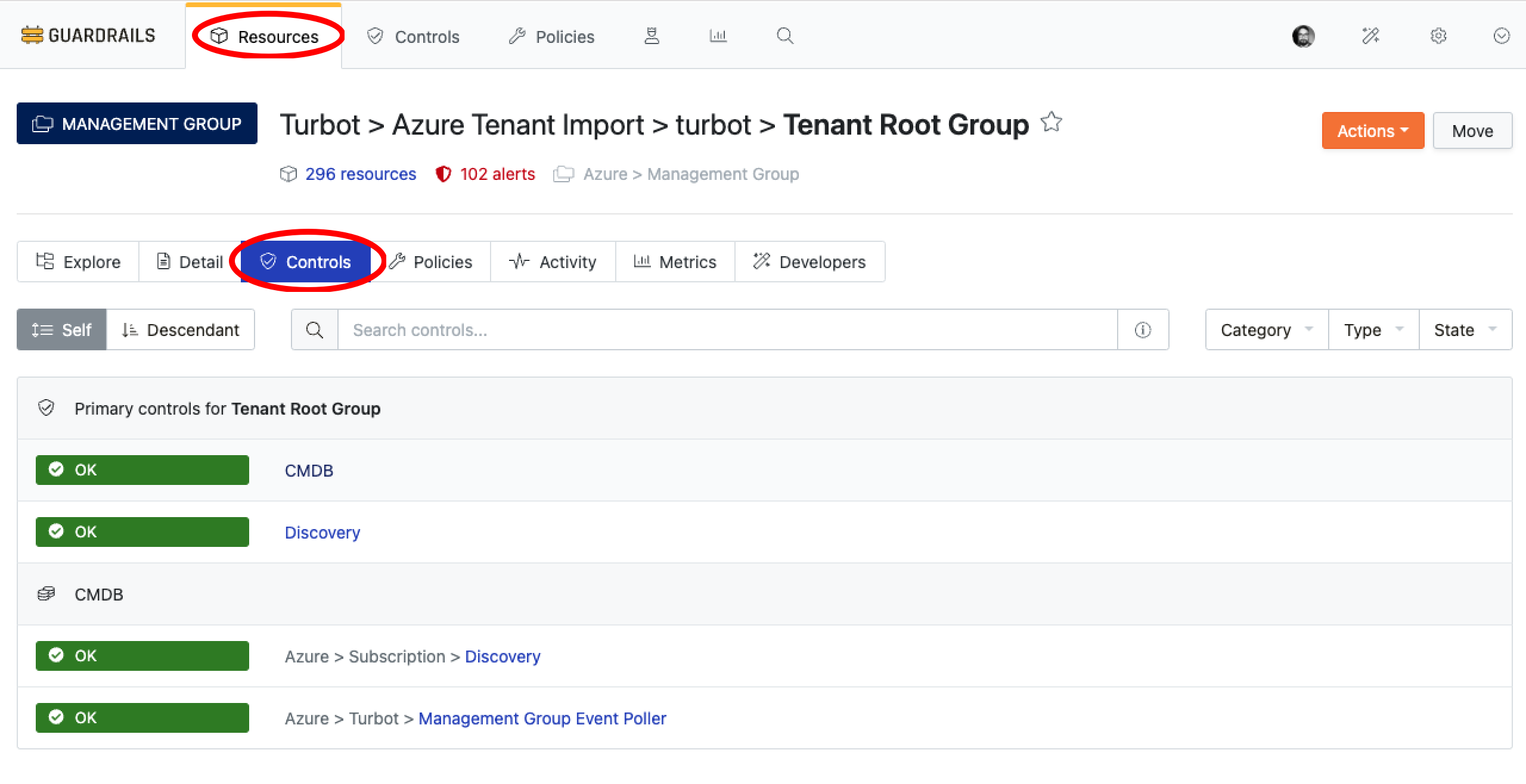
- Confirm that the CMDB and Discovery controls for the tenant are in an
OKstate.
Navigate to the Resources tab, search for the Tenant Root Group, then select the Controls tab to check the control statuses.
Troubleshooting
| Issue | Description | Guide |
|---|---|---|
Controls in ERROR state |
Controls may enter various states, including errors, if the required permissions are not granted. | Learn More About Control States |
| Import fails due to insufficient permissions | The App Registration used for import may not have adequate Azure IAM permissions. | Check Required Azure IAM Permissions |
| Further Assistance | If issues persist, please open a ticket with us and attach relevant details for more efficient troubleshooting. | Open Support Ticket |